11. Changing attributes during motion
Kotlin SM A12 Changing Attribute Step 5 Activity
Changing attributes during motion
Building dynamic animations often means changing the size, rotation, or alpha of views as the animation progresses. MotionLayout supports animating many attributes on any view using a KeyAttribute.
In this step, you will use KeyAttributes to make the moon scale and rotate. You will also use a KeyAttribute to delay the appearance of the text until the moon has almost completed its journey.
After you have completed this step, you will have created the following animation.
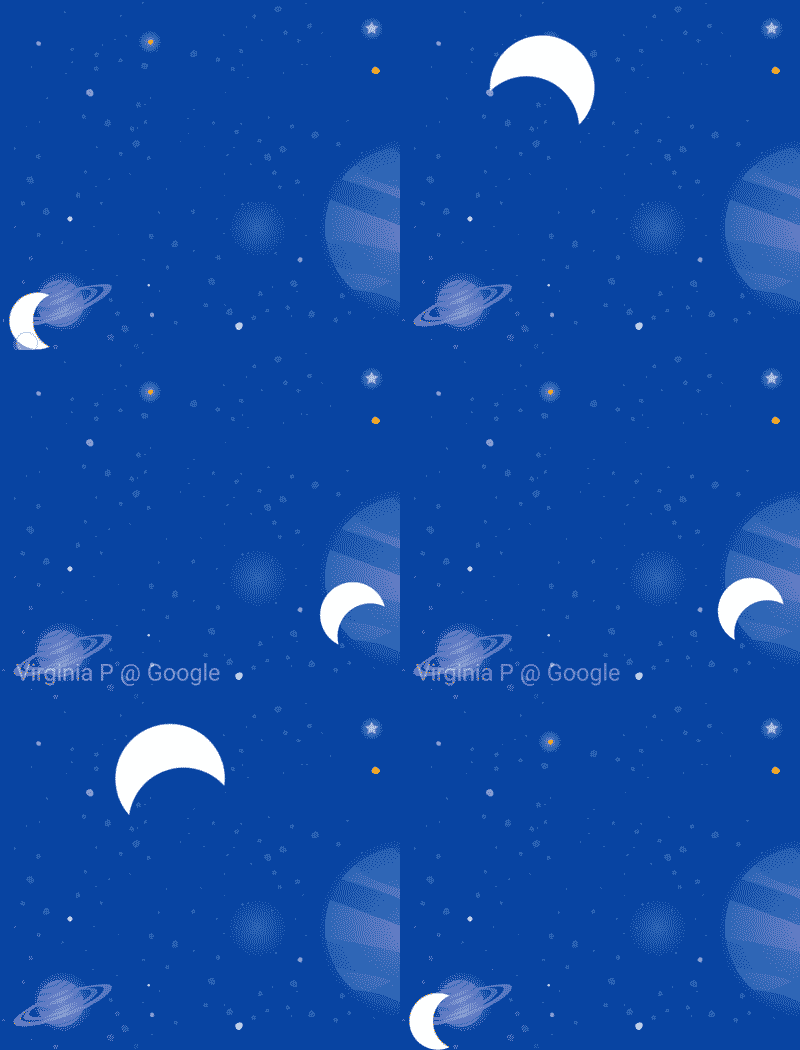
Resize and Rotate with KeyAttribute
- Open
xml/step5.xmlwhich contains the same animation you built in the last step. For variety, this screen uses a different space picture as the background. - To make the moon expand in size and rotate, add two
KeyAttributesin theKeyFrameSetatkeyFrame="50"andkeyFrame="100"
<!-- xml/step5.xml -->

<!-- TODO: Add KeyAttributes to rotate and resize @id/moon -->

<!-- KeyAttributes modify attributes during motion -->
<KeyAttribute
       app:framePosition="50"
       app:motionTarget="@id/moon"
       android:scaleY="2.0"
       android:scaleX="2.0"
       android:rotation="-360"
/>
<KeyAttribute
       app:framePosition="100"
       app:motionTarget="@id/moon"
       android:rotation="-720"
/>
These KeyAttributes are applied at 50% and 100% of the animation. The first KeyAttribute at 50% will happen at the top of the arc, and causes the view to be doubled in size as well as rotate -360 degrees (or one full circle). The second KeyAttribute will finish the second rotation to -720 degrees (two full circles) and shrink the size back to regular since the scaleX and scaleY values default to 1.0.
Just like a KeyPosition, a KeyAttribute uses the framePosition and motionTarget to specify when to apply the KeyFrame and which view to modify. MotionLayout will interpolate between KeyPositions to create fluid animations.
KeyAttributes support attributes that can be applied to all views. They support changing basic attributes such as the visibility, alpha, or elevation. You can also change the rotation like we're doing here, rotate in three dimensions with rotateX and rotateY, scale the size with scaleX and scaleY, or translate the view's position in X Y or Z.
Multiple attributes can be modified at the same time by a single KeyAttribute.
In this animation, the KeyAttribute at keyFrame="50" sets scaleX, scaleY, and rotation. All three attributes will be modified at the same time by MotionLayout.
Delay the appearance of credits
One of the goals of this step is to update the animation so that the credits text doesn't appear until the animation is mostly complete.
- To delay the appearance of credits, define one more
KeyAttributethat ensures thatalphawill remain 0 untilkeyPosition="85".MotionLayoutwill still smoothly transition from 0 to 100 alpha, but it will do it over the last 15% of the animation.
<!-- xml/step5.xml -->

<!-- TODO: Add KeyAttribute to delay the appearance of @id/credits -->

<KeyAttribute
       app:framePosition="85"
       app:motionTarget="@id/credits"
       android:alpha="0.0"
/>
This KeyAttribute keeps the alpha of@id/credits at 0.0 for the first 85% of the animation. Since it starts at an alpha of 0, this means it will be invisible for the first 85% of the animation.
The end effect of this KeyAttribute is that the credits appear towards the end of the animation. This gives the appearance of them being coordinated with the moon settling down in the right corner of the screen.
By delaying animations on one view while another view moves like this, you can build impressive animations that feel dynamic to the user.
A KeyAttribute will never change the appearance of a view at the start or end position.
If a view is rotated, translated, or scaled at framePosition="100" (or 100% through the animation), it will "jump" to its final value. To change the starting or end states, modify the Constraints in the ConstraintSet.
Try out the animation
- Run the app again and go to Step 5 to see the animation in action. When you click on the moon, it'll follow the path from start to end – going through each
KeyAttributethat was specified in theKeyFrameSet.
Because we rotate the moon two full circles, it will now do a double back flip, and the credits will delay their appearance until the animation is almost done.
Explore on your own
- Before you move on to the final type of
KeyFrame, try modifying other standard attributes in theKeyAttributes. For example, try changingrotationtorotationXto see what animation it produces.
Here's a list of the standard attributes that you can try:
android:visibilityandroid:alphaandroid:elevationandroid:rotationandroid:rotationXandroid:rotationYandroid:scaleXandroid:scaleYandroid:translationXandroid:translationYandroid:translationZ